Getting started
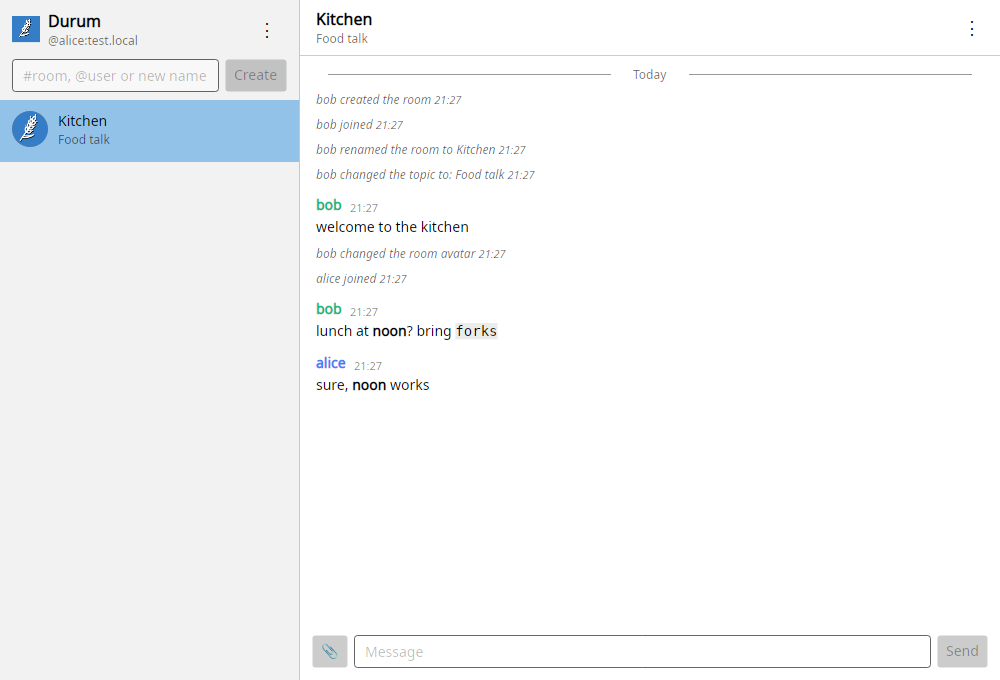
The Uniform Chat app for Windows and Linux: rooms, messages, files and end-to-end encryption in a graphical window. In narrow windows it shows one pane at a time.
Note
The app is in early development. It covers everyday chatting and encryption; notifications on Windows are still to come.
Requirements
- Windows 10 or later, or Linux
- An account on a Matrix homeserver, for example
@alice:matrix.org
Install
See Installing: with apt on Debian and Ubuntu, from the release archives on Windows and other Linux systems, or from source.
Sign in
Enter your full user ID, such as @alice:matrix.org, and your password. The server is found from the user ID; give its address only when it has no discovery file, for example http://localhost:8008 for a server on your own computer.
The app remembers the account, so the next start opens the chat without asking. ⋮ → Sign out logs the device out on the server and forgets the account.
Create an account
On the sign-in form, choose Create an account. Enter the user ID you want, such as @alice:example.org, where the part after : is the server, and a password of your own. Many servers do not let apps create accounts: then make the account on the server's website and sign in here.
When the server needs more, the form asks for it on the first try:
- a registration token, which the server's admin gives to the people they invite;
- its policies, such as terms of service: open them from their links, then tick I have read and accept these policies.
The app then creates the account and signs in to it.
Delete the account
⋮ → Security and recovery…, then Delete account… at the end. Confirm with your password. You leave every room, your name and picture are removed, and every device is signed out. The account cannot be used again, and nobody can take its user ID.
Next, see Rooms and Messages and files.
Where things are kept
| What | Where |
|---|---|
| Messages, keys and files | ~/.local/share/uniform-chat-desktop/ |
| Remembered account and settings | ~/.config/uniform-chat-desktop/settings.json |
On Windows, ~ is your user folder, for example C:\Users\alice.